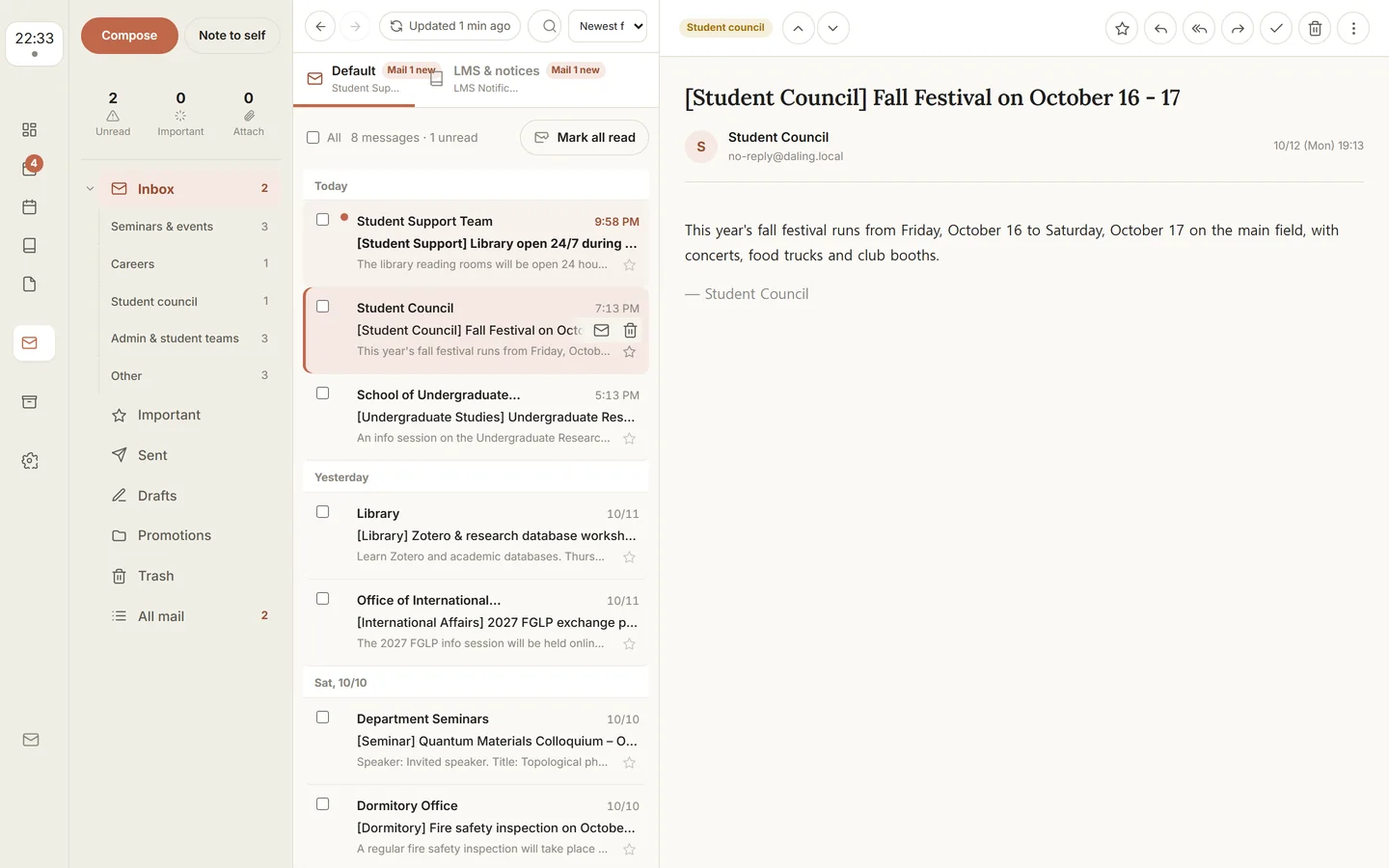
Inbox
Read and reply inside the app
- Seminar, admin and career mail sorted for you
- Reminder drafts for mail with no reply
- Translate English mail
A desktop app for DGIST students · Windows · macOS · Linux
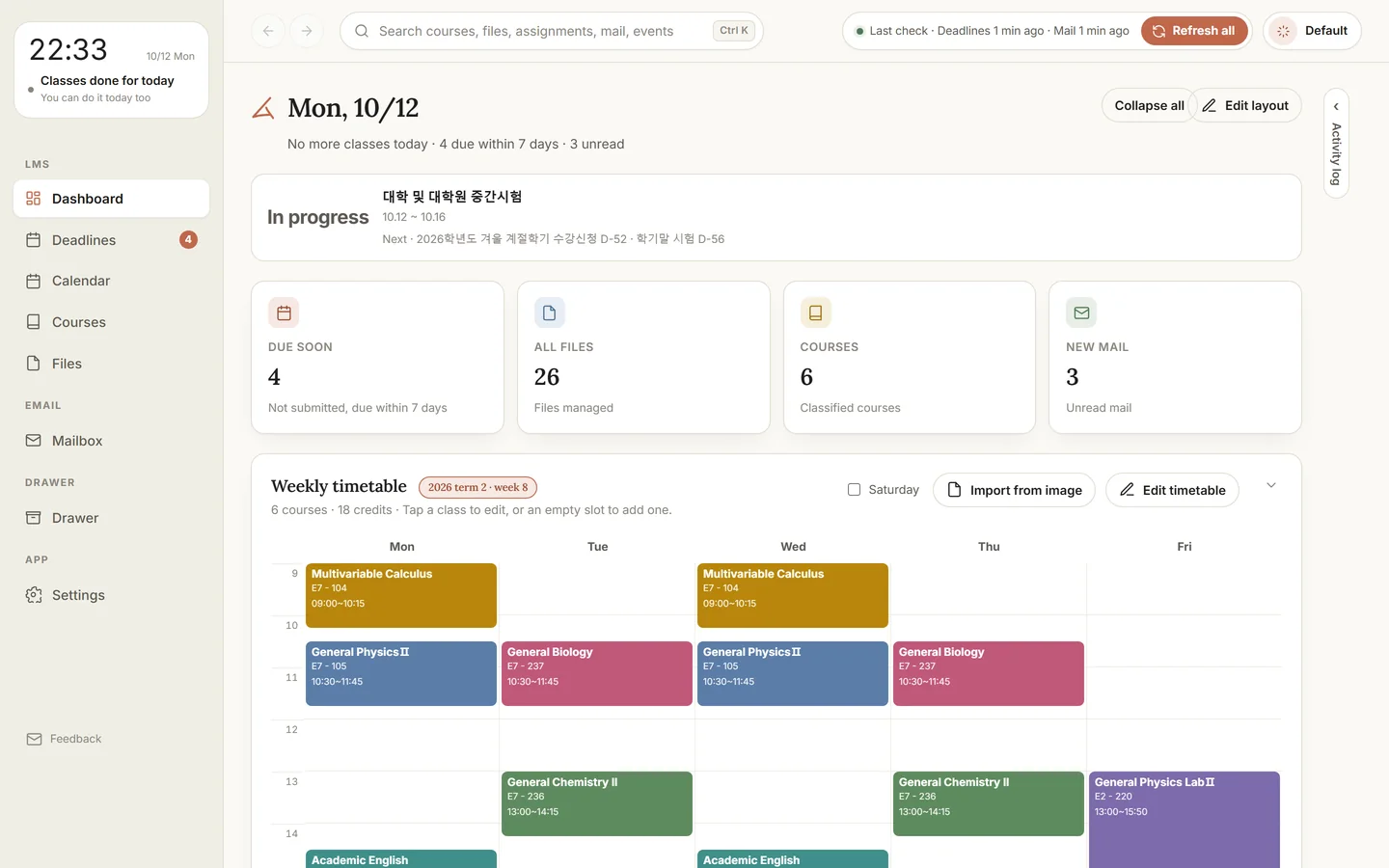
Daling gathers your course materials, assignment deadlines, school e-mail, the academic calendar and campus notices into one screen. Files can also go to your own Google Drive, and deadlines and events to Google Calendar.
Free · Open source · Latest 1.12.66 · Your files and passwords stay on your own computer
01Why Daling
The LMS, webmail, the academic calendar and the notice board. Separate logins, separate checks, and it's easy to miss a deadline.
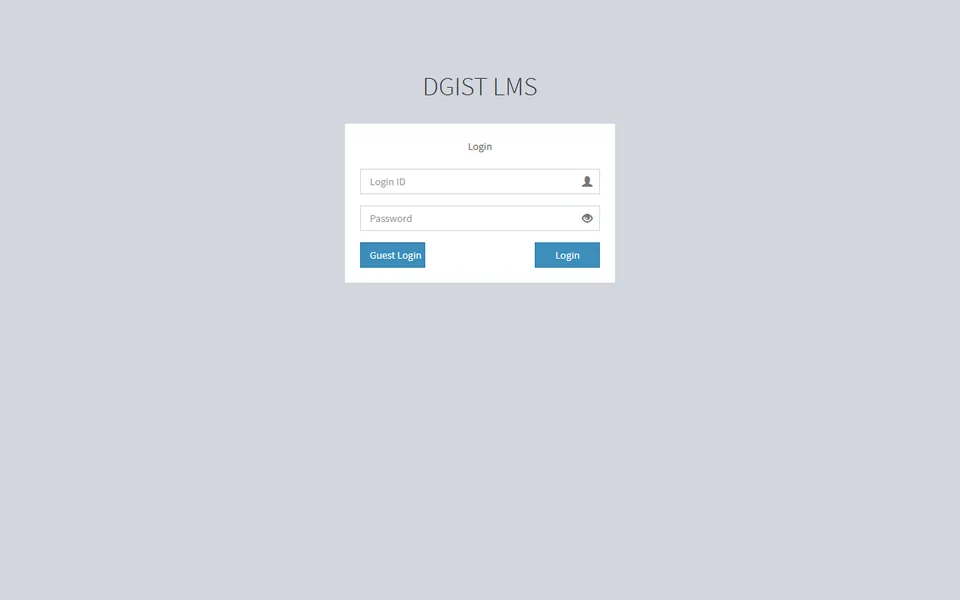
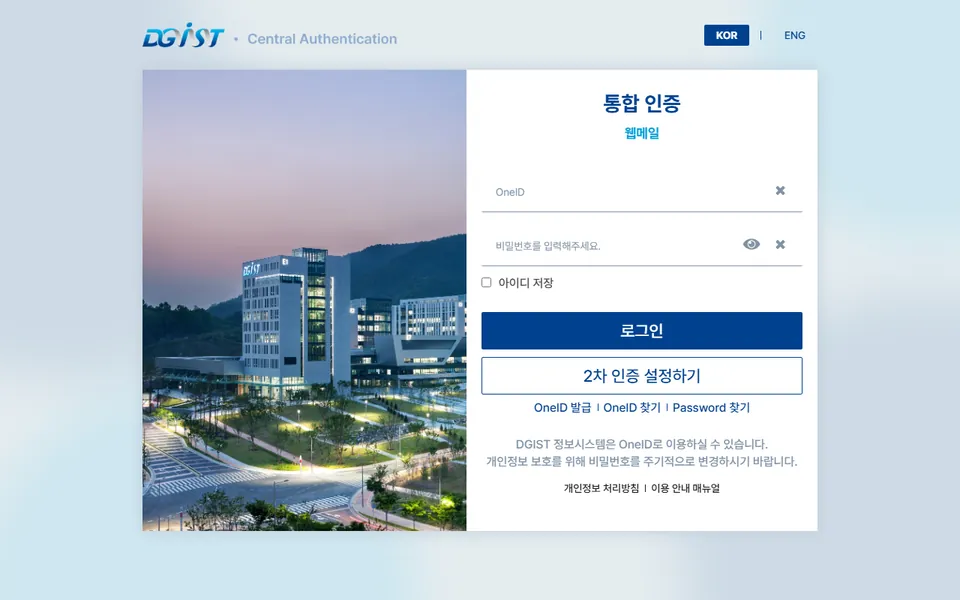
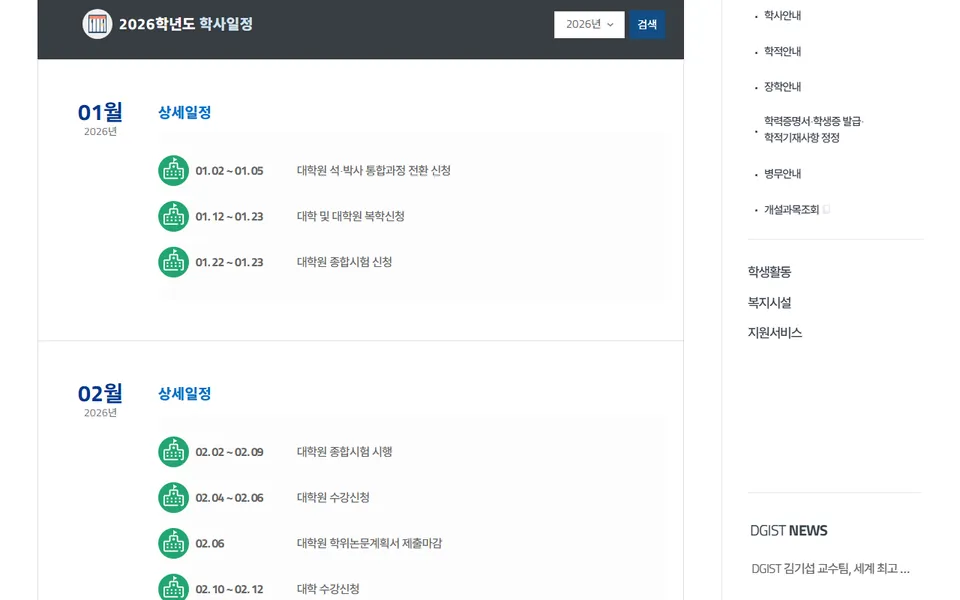
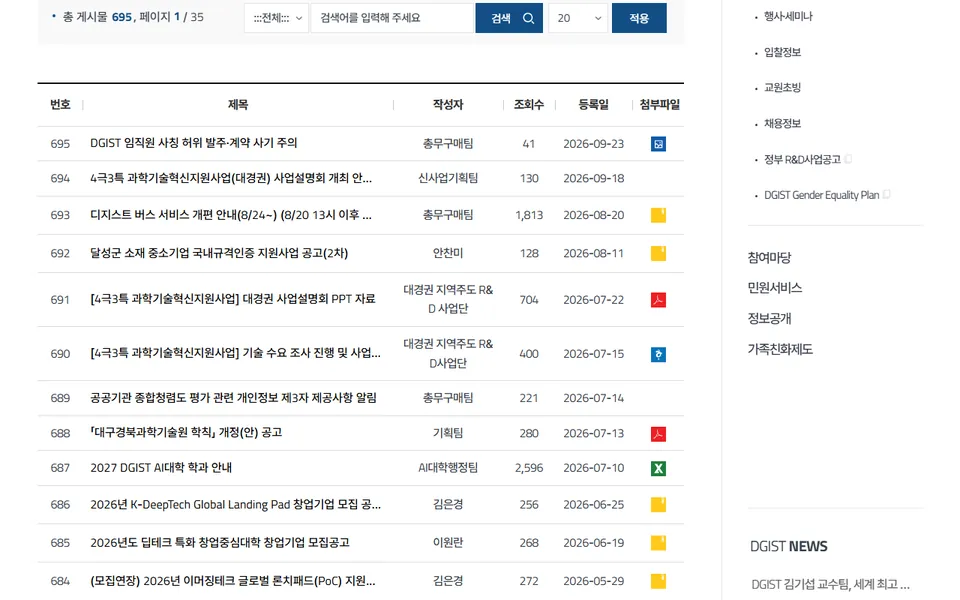
 Daling brings it all into one screen
02Features
Sign in once and only what's new comes in on its own.
PART 1
UNTIL NOW · BY HAND
× every course, all semester
DALING · AUTOMATIC
Same course and week folders as the LMS. Updated files replace the old version.
In the cloud too
Your Drive's AutoSaver folder and your cloud folder get the same layout, ready on your phone or tablet.
Folders
PART 2
Inbox
AI side panel
Courses · Professors · TAs
PART 3
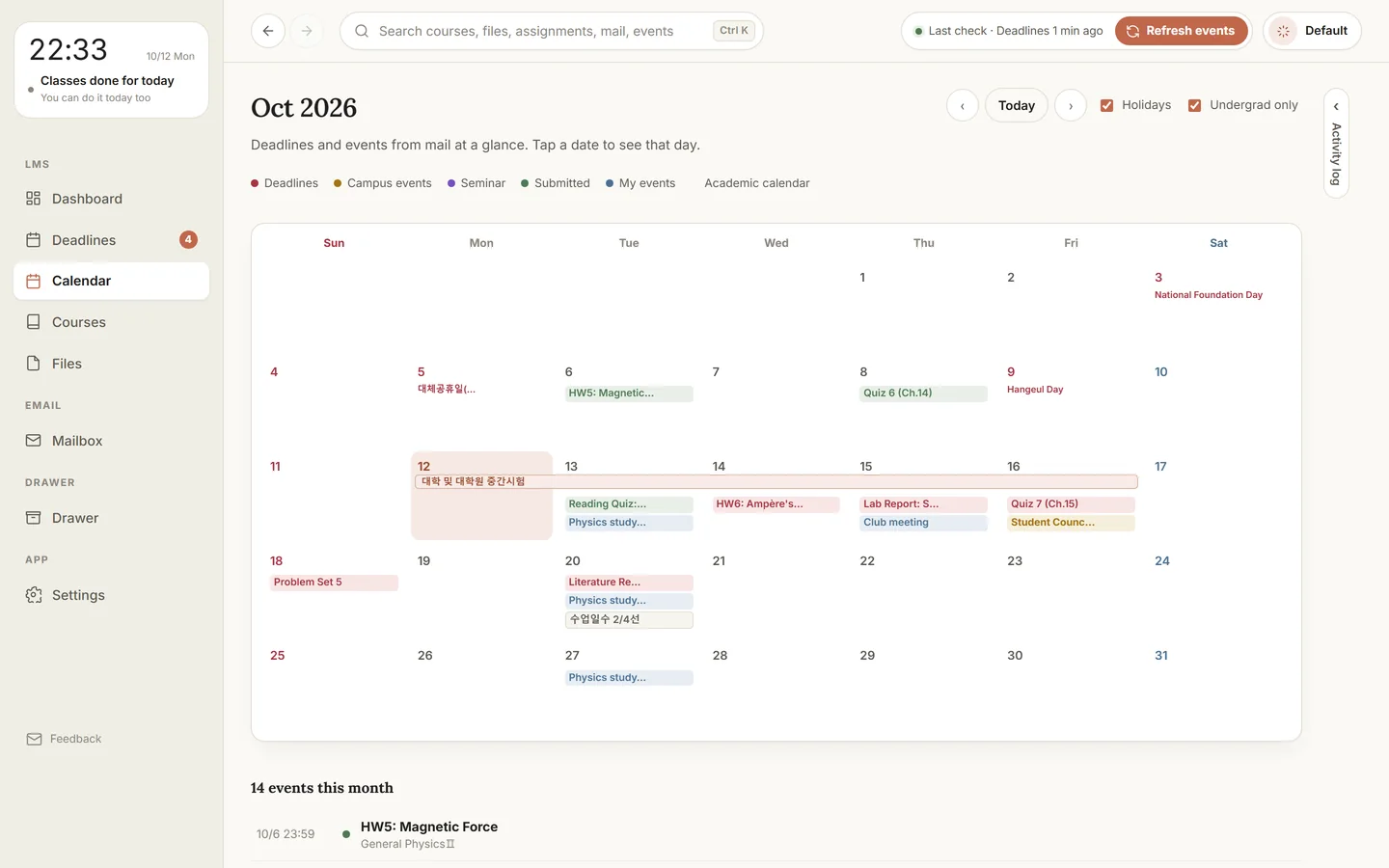
Calendar
PART 4
UNTIL NOW · BY HAND
Every time a seminar mail arrives
DALING · AUTOMATIC
Only seminars in the fields you pick in Settings. Date, speaker and venue are read from the mail, and reposts merge into one event.
Your calendar
Turn it on once and seminars in your fields go to your Google Calendar, with speaker and venue, so they're on your phone too.
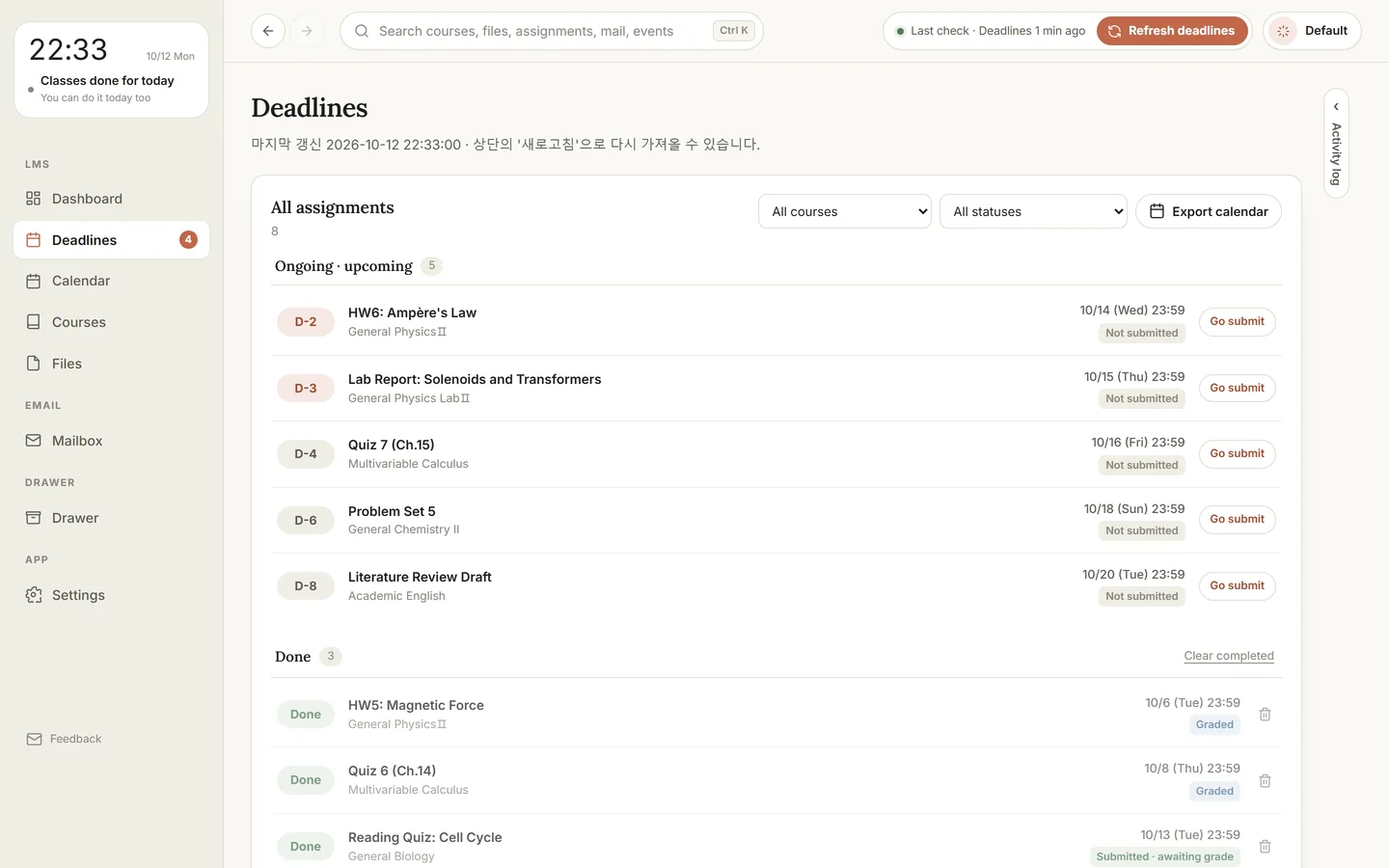
Deadlines
03Privacy
The developer keeps none of your data on a server. Your files and account details are stored on your own computer and are never sent to the developer. Data goes only to the Google account you connect, the AI program you call yourself, and "Use in Claude" if you turn it on, and only what each task needs.
drive.fileUploads course files into course/week folders the app creates and checks whether a file was already uploaded.
When you attach a Drive file to a mail, it can open only the files you pick in Google's file picker. Files you don't pick stay out of reach.
calendar.app.createdCreates one dedicated calendar and adds or updates deadlines, academic events and dates found in mail there. It can only open calendars the app created, so your other calendars and events stay out of reach.
DGIST LMS and mail (with your school account), the school website and public data (public info only), GitHub for update checks. Only when you use an AI feature yourself, such as the AI panel beside the compose window or "Ask AI", does the text that task needs go to the AI program on your computer (Claude, Gemini or Codex). Google data is never used for ads or AI training and is never sent to the AI.
04Download
Free and open source under the Apache License 2.0.
Windows 10 · 11 (64-bit) · Installer (.exe)
Download for WindowsVersion 1.12.66 · 57 MB
Apple silicon or Intel Mac · macOS 12+ · Disk image (.dmg)
Download for MacVersion 1.12.66 · 78 MB
Intel Mac: Intel DMG (81 MB)
xattr -dr com.apple.quarantine /Applications/Daling.app in Terminal and open it again.x86_64 · Ubuntu 22.04, Debian 12, Fedora 36 or newer · AppImage
Download for LinuxVersion 1.12.66 · 250 MB
chmod +x daling-*.AppImage (or Properties → "Allow executing file as program")./daling-*.AppImage./install.sh.Paste into PowerShell on Windows, or Terminal on Mac and Linux. It checks the download against the GitHub release (SHA-256) before installing; run it again to update.
irm https://gudaling.dev/install.ps1 | iexcurl -fsSL https://gudaling.dev/install.sh | shScript source: install.ps1 · install.sh · If macOS Terminal blocks the paste, allow it from that warning.
Enter your LMS and school mail sign-in in Settings. Passwords are encrypted and stay on your own computer; they're never sent anywhere.
Only if you want Drive and Calendar. Daling works fine without it.
A short tour on first launch; after that, new files and mail come in on their own.
05FAQ
No. It's an unofficial app made by a DGIST student and is not made or operated by DGIST. Always double-check important deadlines and notices on the LMS and official channels.
No. Files and settings stay in the data folder (Windows C:\lms-autosaver, Mac ~/Library/Application Support/Daling — or ~/.lms-autosaver if you used an earlier version, Linux ~/.lms-autosaver). Delete that folder if you no longer need it.
The grey greeting, intro and sign-off are made from templates inside the app, without AI. Only when you use an AI feature yourself — talk to the AI panel beside the compose window, rewrite a selection, or press "Ask AI" or translate — does the text that task needs go directly to the AI program you installed and signed in to on your computer (Claude, Gemini or Codex). It never goes through the developer, and nothing from Google Drive or Calendar is sent. Details are in the Privacy Policy.
Use the "Feedback" button at the bottom left of the app, or write to [email protected].